
Hi, I am using HDFView 3.4.1 on Windows 11 installed using the provided .msi file. When I try to open some datasets in my files with it an error box appears which says “An error occurred while loading data for the table: failed to read scalar dataset: Can’t open directory or file”. I am able to read these datasets using h5py 3.16.0 without issue, so the issue seems to be related to HDFView rather than the file itself. I have tried right clicking the dataset, selecting “Open As” and opening a smaller number of rows (in case it was a memory issue) without effect. Unfortunately I’m not able to share the files in question, but I’m wondering if there are any troubleshooting steps that I should try. I can’t even find the log file referenced - where is it saved?
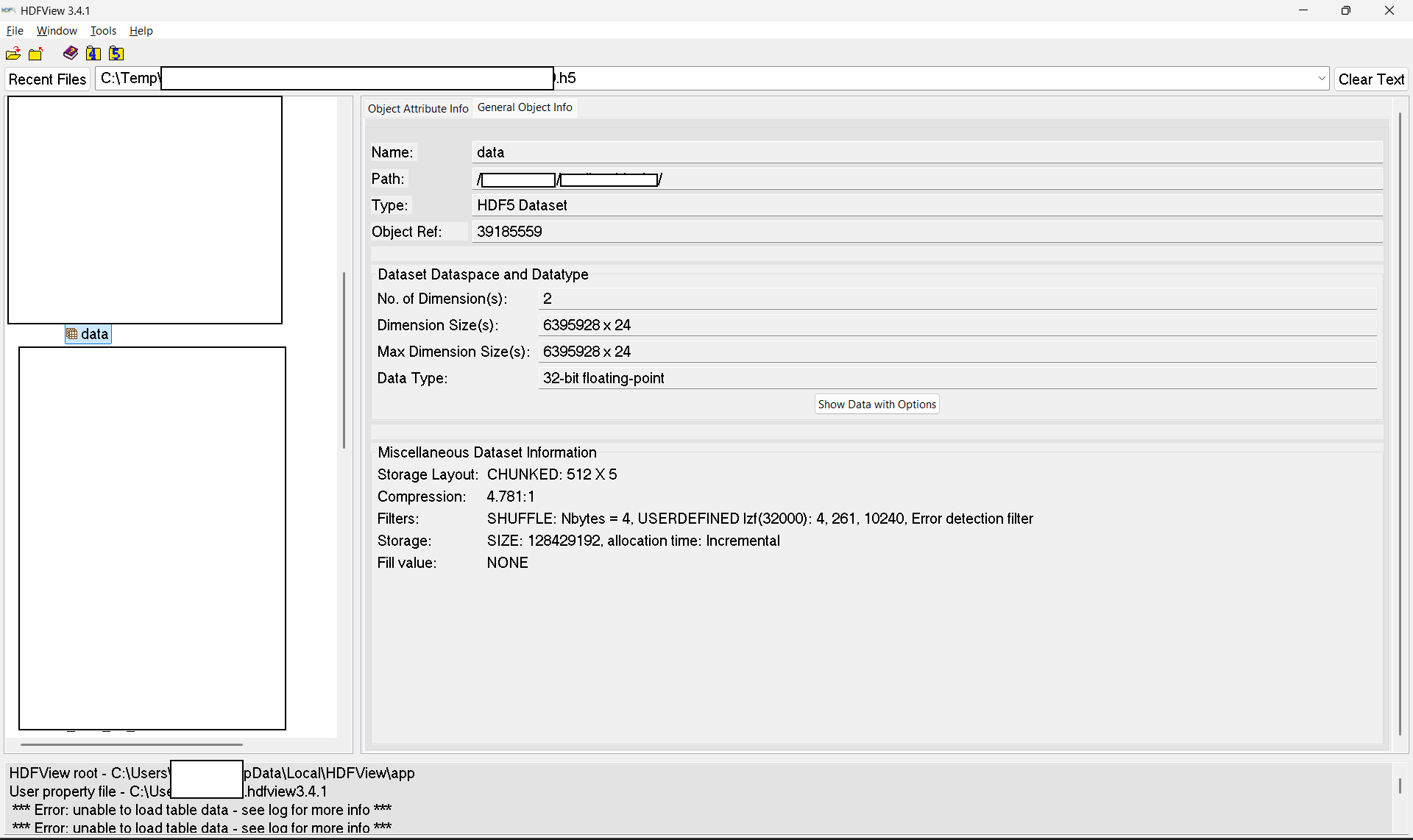
this appears to be an issue due to the installed HDFView not adding the installed directory containing filter plugins (LZF in your case) to the default plugin paths searched in. However, that also brings to my attention that the Windows installers specifically are missing these filters. If you download https://github.com/HDFGroup/hdf5_plugins/releases/download/2.0.0/hdf5_plugins-master-win-vs2022_cl.msi and install that, it should install LZF and other filters on your system, by default to C:\Program Files\HDF_Group\HDF5\2.0.0. Then, in HDFView, go to Tools → Preferences → HDF Settings and in the “Plugin Paths” section click on “Browse”, navigate to C:\Program Files\HDF_Group\HDF5\2.0.0\lib\plugin and “Select Folder”. Then, back in HDFView click “Add Path” and “Apply and Close” and HDFView should be able to find the installed filter plugins and be able to read your dataset.
We’ll work on fixing this for the next release.
Thank you for the quick reply! I followed these steps and am now able to view my datasets.